

For movie enthusiasts or those learning a new language, subtitles are an absolute necessity. But dealing with missing subtitles or out-of-sync text can be frustrating.
Today, we'll dive deep into managing subtitles so your UFlix movie collection is flawless!
1. Understanding "Hardsub" and "Softsub"
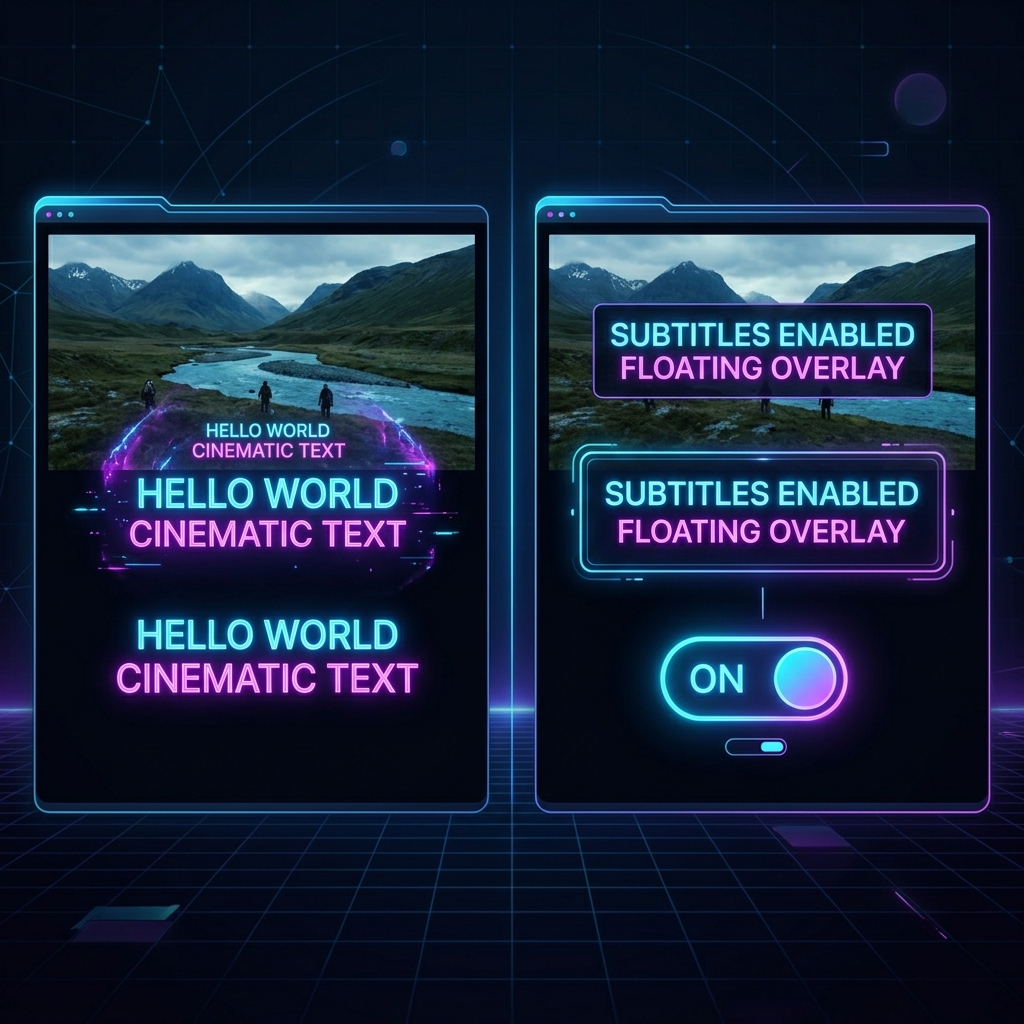
Before hunting for subtitles, you need to understand their types, as this affects how they work on the web.
📌 Hardsub (Burned-in)
This means "embedding the text directly into the video file," like painting on a wall.
- Pros: Extremely convenient. Open it anywhere, on any device, and the subtitles will 100% appear. No font display issues.
- Cons: Cannot be turned off! Cannot change languages! Cannot resize fonts! If the translation is wrong, you're stuck with it.
📌 Softsub (External Files)
These are small text files (usually .srt or .vtt) played alongside the video.
- Pros: Can be toggled on/off freely. Supports multiple languages in one video (like Netflix). Font sizes can be changed.
- Cons: You must name the file exactly the same as the video, and the video player must support reading subtitle files.
2. The Treasure Hunt: Where to Download Free Subtitles

If you have raw movie files without subtitles, here are the best places to find them:
- OpenSubtitles.org: The largest subtitle database in the world, covering almost every language and movie.
- Subdl.com: A fast, modern alternative that's very easy to use.
- Thaisubtitle.com: Excellent for finding Thai subtitles for older movies or series.
Pro Tip: Always try to download files with the .srt (SubRip Subtitle) extension, as it's the most universal standard.
3. How to Embed Subtitles (Hardsub) using HandBrake
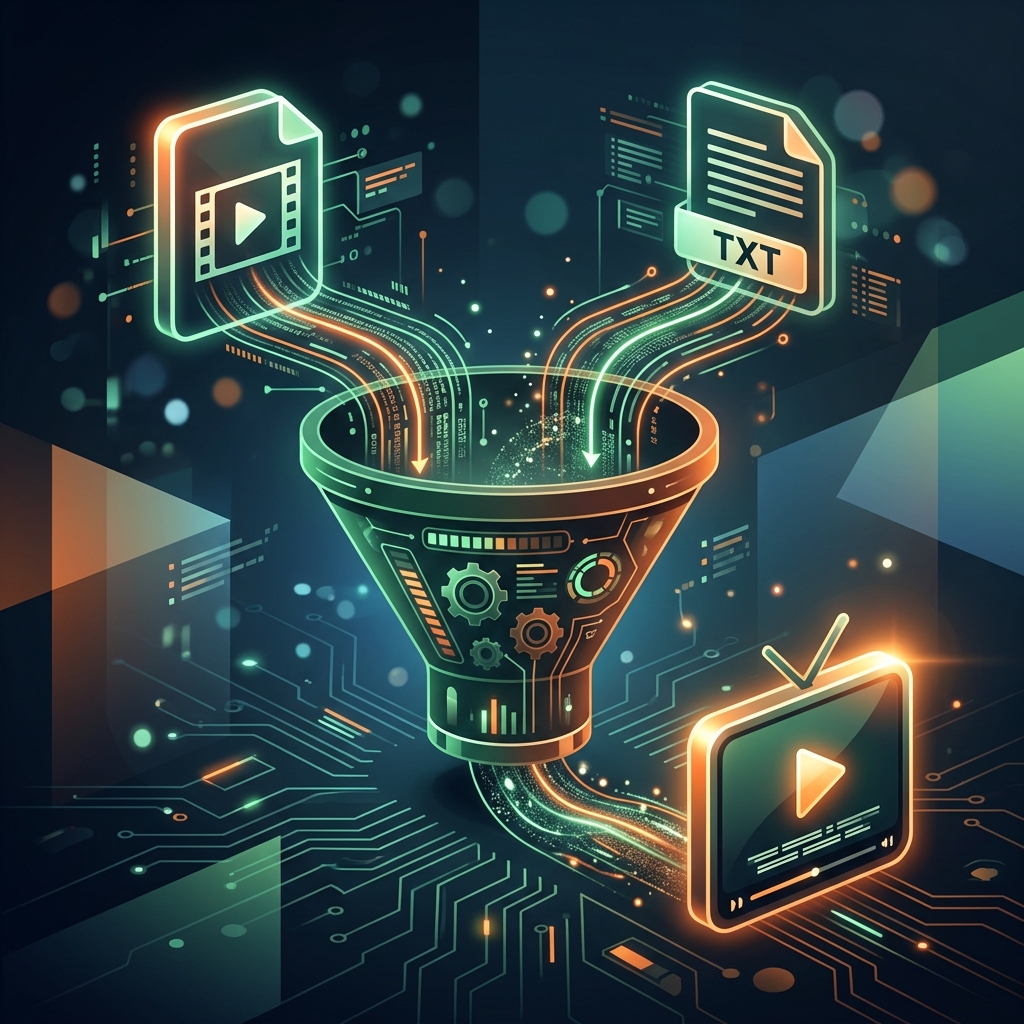
Currently, our direct-link Google Drive streaming system might have limitations reading external Softsubs. The most reliable and stable method is to "embed (Hardsub)" your .srt file directly into the video.
We can easily do this using HandBrake (which we covered in our previous guide):
- Open HandBrake and drag-and-drop your video file into it.
- Go to the Subtitles tab.
- Click the Import Subtitle button and select your downloaded
.srtfile. - Crucial Step: Check the box that says "Burn In" (this tells the software to paint it onto the video).
- Click the green Start Encode button and wait for it to process.
That's it! You'll get a new .mp4 file with beautiful, perfectly synced subtitles. You can now upload it to Google Drive and stream it on UFlix with 100% certainty! 🎉
🔮 Future Update: The UFlix development team is actively researching web-based Softsub upload features (supporting
.vttfiles). Soon, you'll be able to toggle subtitles freely just like world-class platforms. Stay tuned!